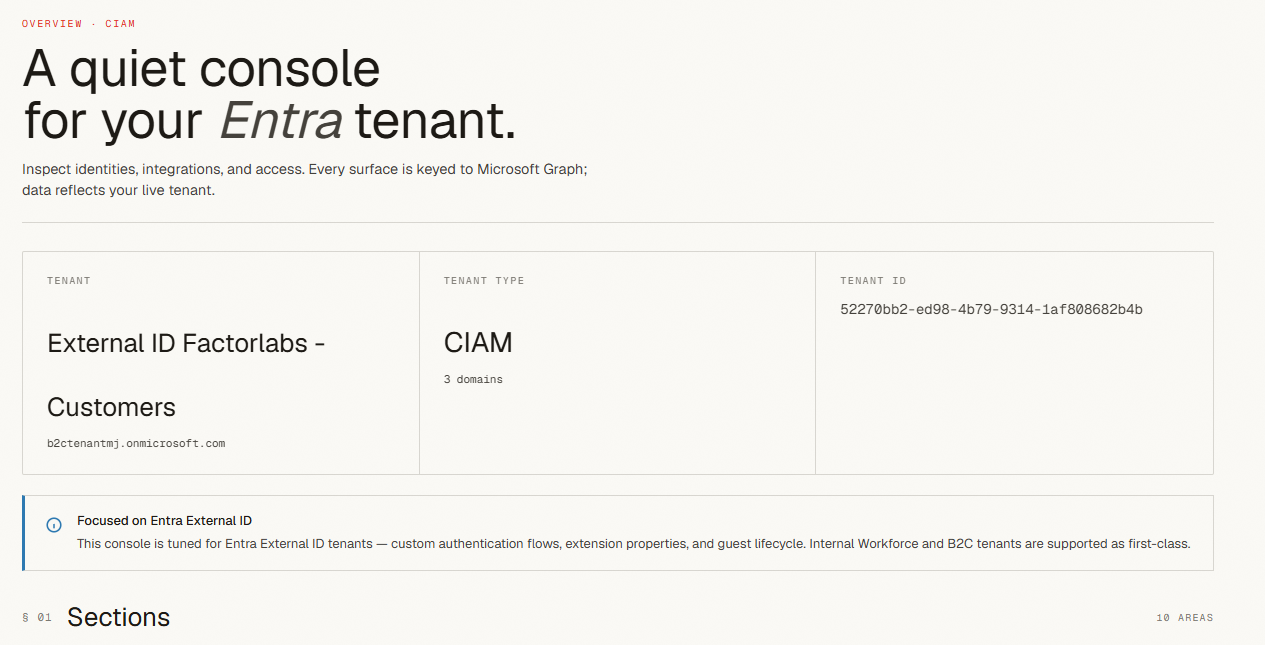
I spend a lot of time switching between the Entra admin center, the Azure portal and PowerShell - reading extension properties, filtering users by those properties, and checking user status and details. They are good tools, but they show everything, one blade or command at a time.
And that is the problem. The questions I ask every day are not “show me this object”. They are:
What claims does this application actually get in the token?Which extension attributes exist in this B2C tenant, and who uses them?Show me all users created last month, from this identity provider, without a value in that attribute.Which User Flow is assigned to what application?Do I require MFA for my Playground app?
In the portal, answering each of these means five blades, three tabs, and a Graph Explorer query on the side.
So I built my own My Tenant Portal. It is a small single-page application (SPA) that talks to Microsoft Graph and shows my tenant the way I think about it. Today I am announcing it — and, more importantly, encouraging you to build your own with your favorite AI coding assistant.
💡Note: This is not a product pitch. With an AI coding assistant, a portal like this is an afternoon project. The value is that it is yours: your tenants, your questions, your views. Use mine as inspiration, build one around your own needs, or try mine as it is!
Why build your own?
The Microsoft portals are designed for every customer at once. Your tenant is not every customer. You have:
- a handful of applications that matter,
- a naming convention for custom attributes,
- a set of questions your support team asks every week.
A generic portal cannot know any of that. A portal you build in an afternoon can.
The other reason is that the barrier is gone. A few years ago a “custom admin portal” meant a sprint, a frontend framework, MSAL plumbing and a backlog. Today you describe what you want to an AI assistant, point it at the Microsoft Graph documentation, and iterate. The hard part is no longer the code. The hard part is knowing which view you want - and you already know that, because you are the one clicking through the blades every day.
The shape of it
Nothing exotic — and deliberately as small as possible:
- SPA only, no backend. The whole portal consists of static files. The browser signs in and calls Microsoft Graph directly. No backend server to host, patch or secure, and no client secrets to store. I host mine on Netlify’s free plan.
- Delegated permissions only. Every Graph call uses the signed-in admin’s delegated access, not app-only permissions. Access is limited by both the app’s consented scopes and the admin’s permissions in that tenant.
- One multitenant app registration. A single SPA app registration (
AzureADMultipleOrgs) serves all tenants. Each tenant grants admin consent once and gets an enterprise application for it; no per-tenant app registrations to keep in sync. - Tenant selector. Before signing in, you pick the tenant. MSAL then signs you in against that tenant’s authority (
https://login.microsoftonline.com/<tenant-id>), so the token — and every Graph call — is scoped to the selected tenant. External ID, B2C and workforce tenants live side by side; switching tenants is a new sign-in, not a new app. - Local storage for preferences. The portal remembers things in the browser’s
localStorage: your list of tenants, the last selected tenant, column choices and saved filters. These preferences stay in your browser; the portal does not send them to a backend. - Read-only Microsoft Graph calls (
Application.Read.All,User.Read.All,IdentityUserFlow.Read.All, …).
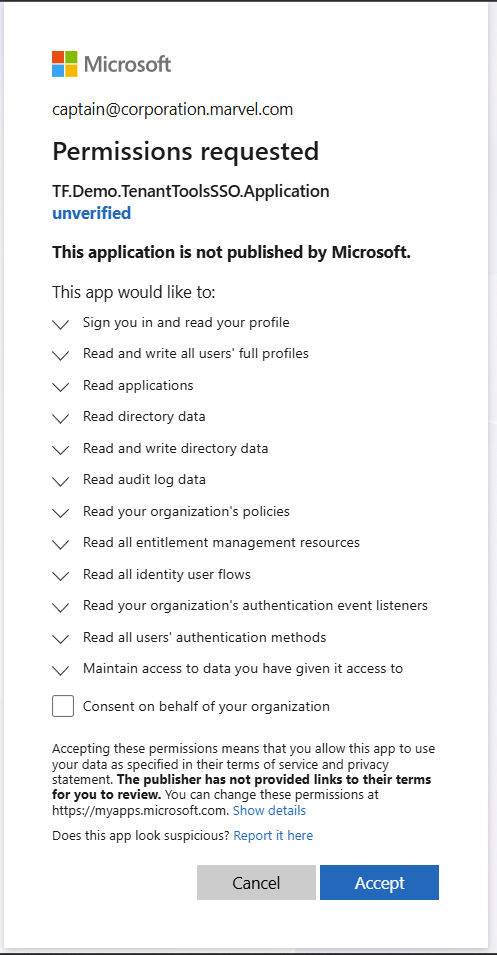
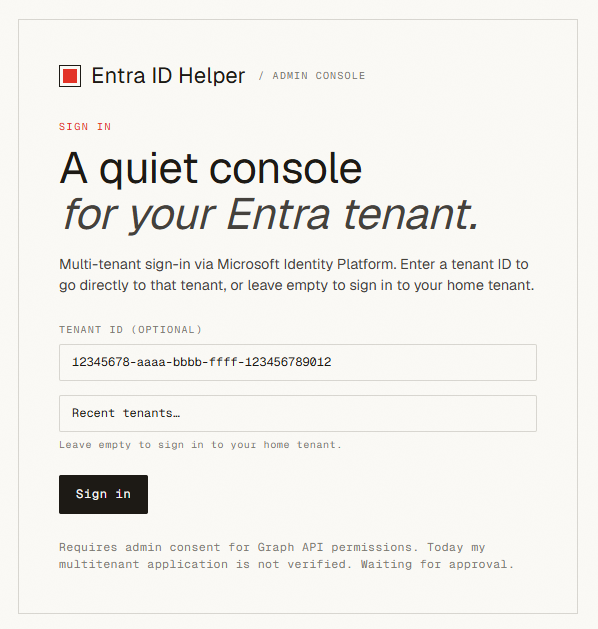
💡Note: Keep it read-only for first version, extend later! Read-only access reduces the risk of accidental changes to production and makes security review simpler. You still need to protect the sensitive data the portal can read.
Below are the three views I use the most. Each one replaced a recurring “let me check in the portal” moment.
External ID: User Flows and token enrichment per application
In Microsoft Entra External ID, a user flow is linked to applications, and the token an application receives is shaped by configuration in several places:
- the attributes collected in the user flow,
- the optional claims configured on the app registration,
- claims mapping / custom claims providers (token enrichment from an external API),
- built-in and custom user attributes.
In the portal, these live in different blades. When someone asks “why is loyaltyLevel not in my token?” you have to visit all of them.
The User Flows view brings all of this together: each user flow, the applications linked to it, and the claims configured for each application. It shows the claim name, its configured source, and whether it is a built-in attribute, a custom attribute or an enriched claim.
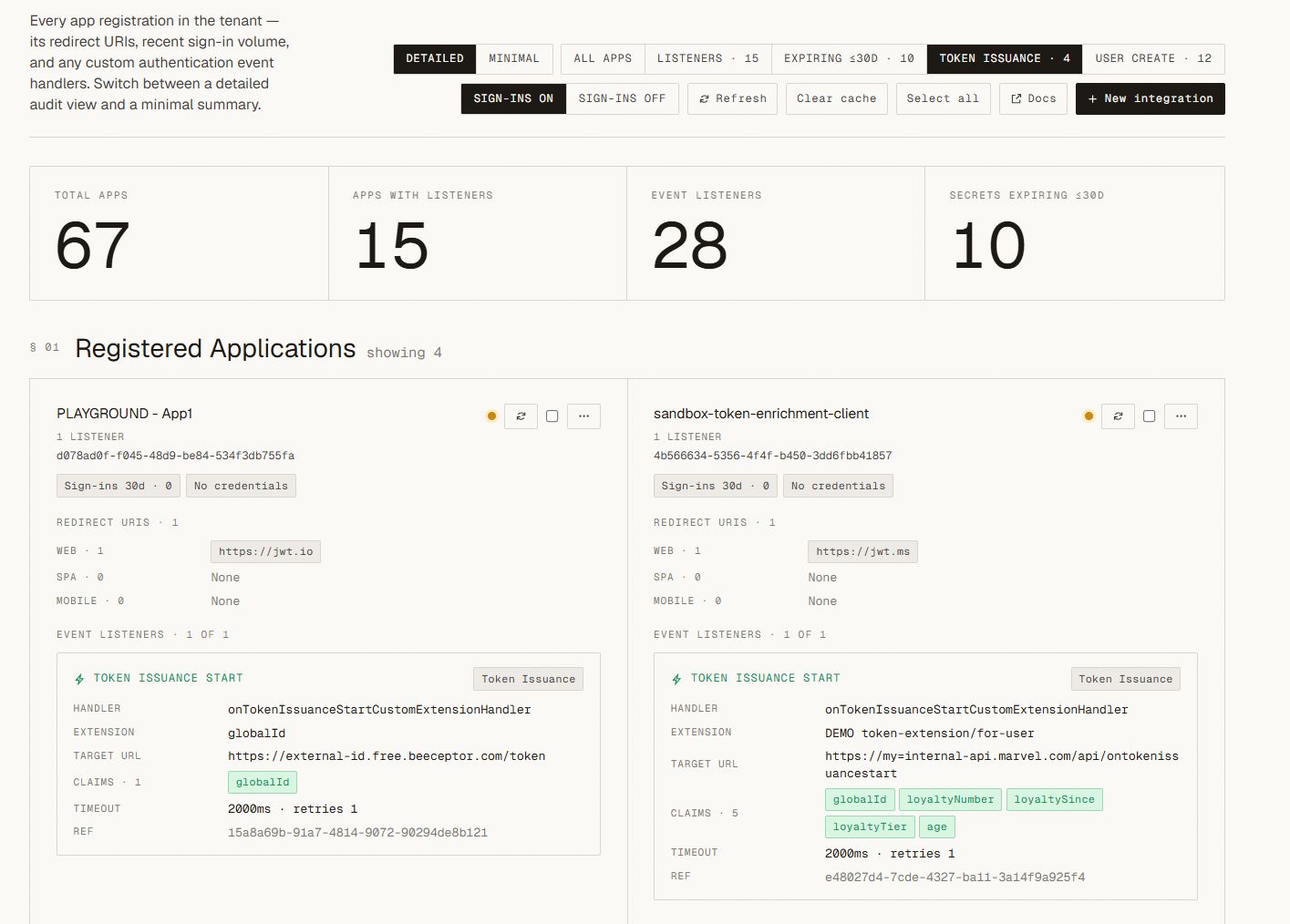
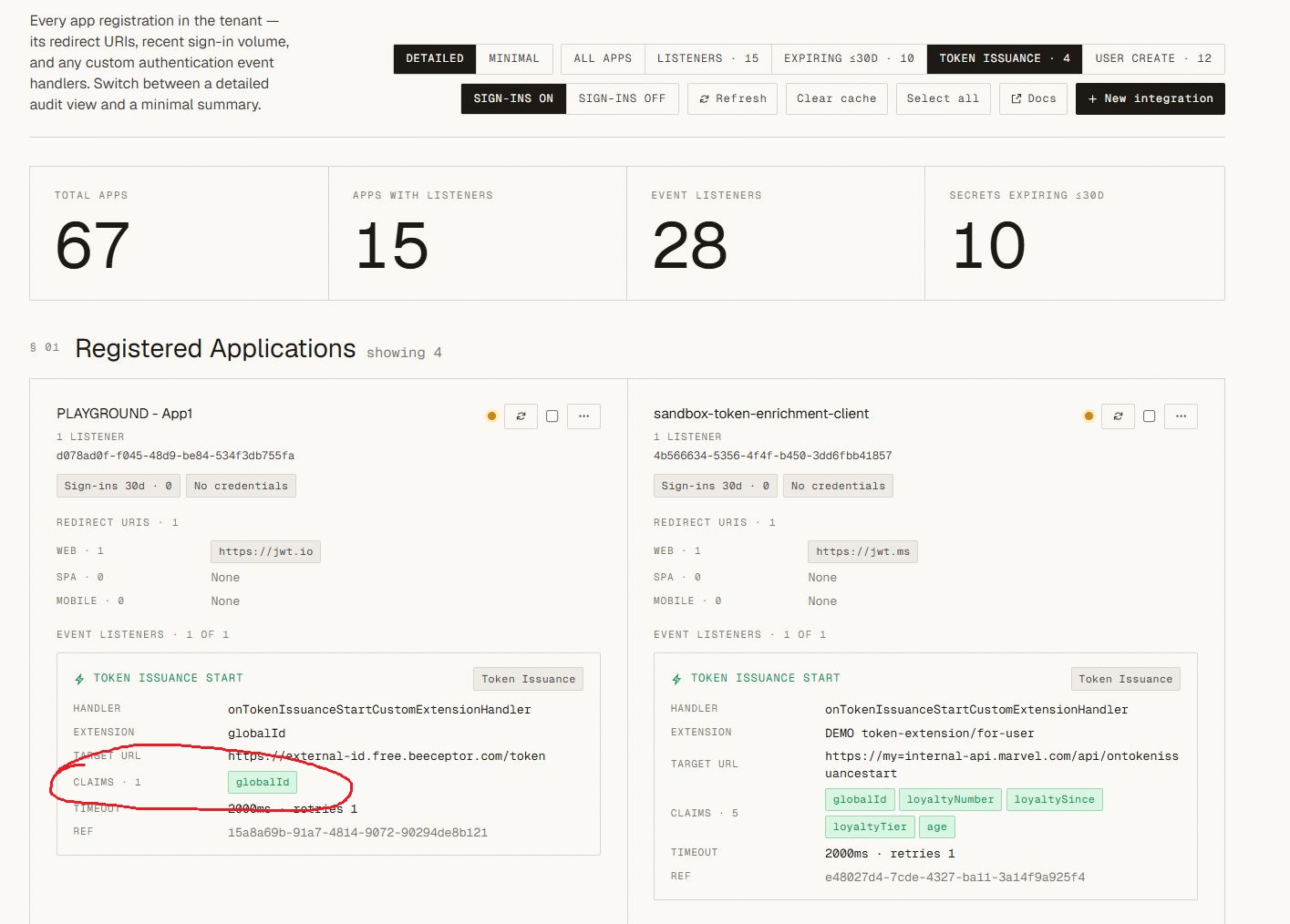
What it gives me:
- a single place to check “which token claims are configured for this app?”,
- a quick diff between two applications on the same user flow,
- a view I can share with developers instead of sending screenshots of five blades.
For more background, see my posts on token enrichment in External ID, the External ID deep dive and the B2C to External ID migration guide.
B2C: every extension attribute in the tenant
Azure AD B2C custom attributes are stored as directory extensions on the b2c-extensions-app, with names like extension_<appId-without-dashes>_loyaltyLevel. Over the years, a B2C tenant collects a lot of them: some from user flows, some from custom policies, some from apps that registered their own extensions and are long forgotten.
The Microsoft portal shows you user attributes for user flows. It does not give you a single list of all extensions in the tenant, their owning applications, and their data types.
The Extensions view gives you:
- every extension property in the tenant, grouped by owning application,
- data type and target object (user, group, application, …),
- filtering by extension - pick one and see where it is used and which users have a value in it.
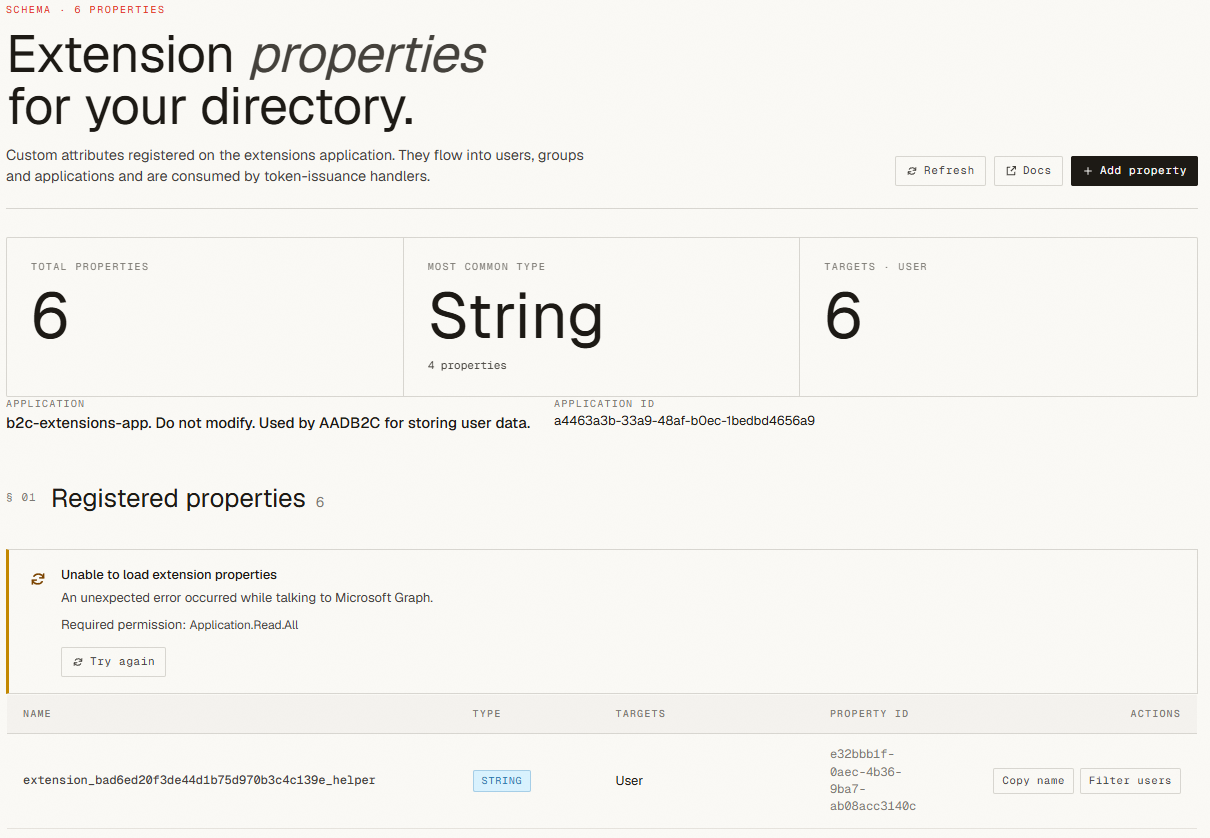
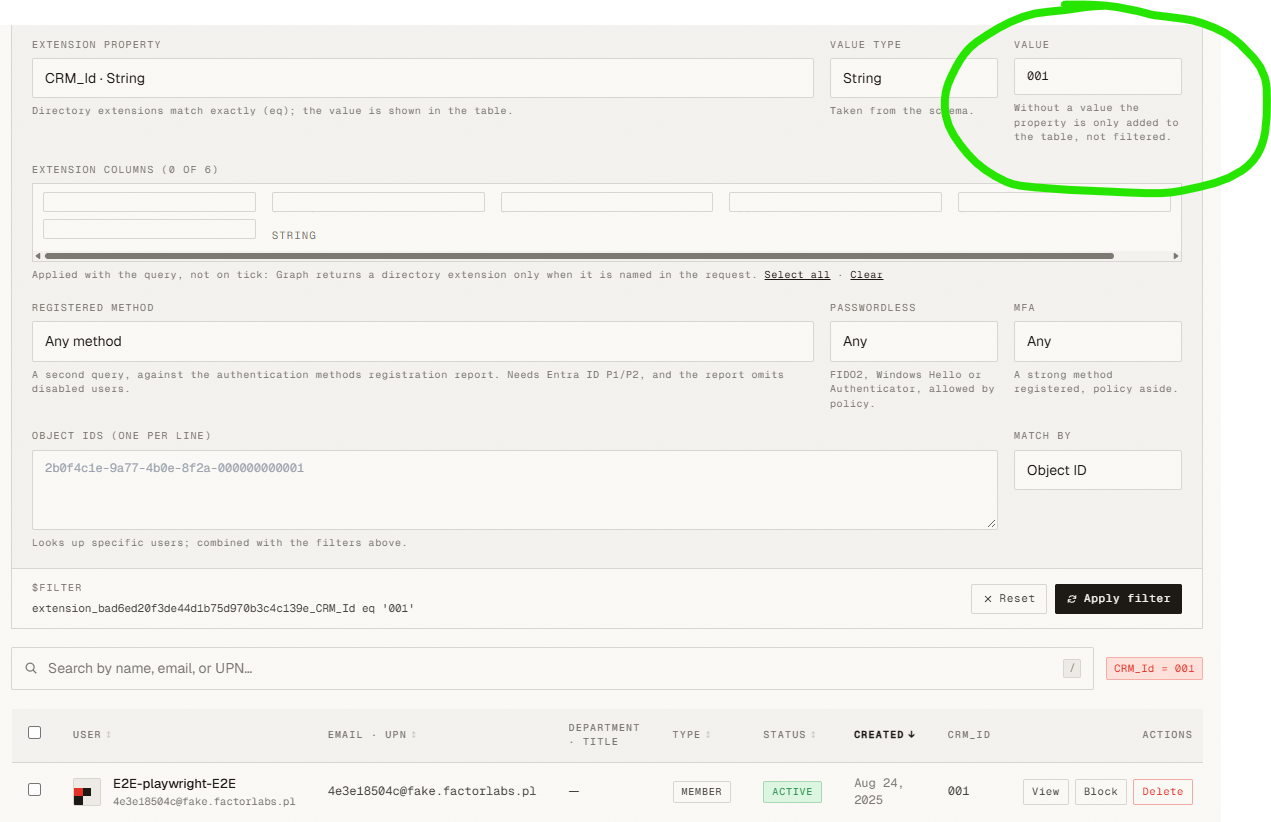
This view earns its keep during a B2C → External ID migration. Before you move users, you need an inventory of every custom attribute: which ones are still in use, which ones are empty, and which ones you can drop. This view puts that inventory on a single page, without a separate Graph script.
All tenants: advanced user view and filtering
The user list in the Entra admin center is fine for finding one user. It is not great for questions about a group of users (by list of object IDs):
- users created in a date range,
- users form object IDs list,
- users with a specific extension attribute value.
The Users view works for every tenant type — workforce, External ID and B2C — and gives me:
- advanced filtering on built-in properties, identities and extension attributes,
- configurable columns (show the custom attributes you care about, hide the rest),
- a user details panel with all identities and extension values, with extension names translated into friendly labels.
💡Note: Microsoft Graph supports
$filteron many user properties, including some extension attributes, but support and query requirements vary by property and tenant type. Advanced queries may requireConsistencyLevel: eventualand$count=true. For unsupported filters, page through the results and filter in the app. Test performance with your tenant’s data volume and account for Graph throttling.
How to build yours with AI
Here is how to get started. You do not need my code — you need your questions. A workflow that works:
- Write down three questions you answer in the portal every week. Those are your first three views.
- Find the Graph endpoints. Ask the AI assistant, then verify in the Microsoft Graph documentation or Graph Explorer. For the views above:
identity/authenticationEventsFlows,applications,servicePrincipals,directoryObjects/getAvailableExtensionProperties,users. - Start with sign-in and one page. Let the assistant scaffold the app with MSAL and a single read-only Graph call. Run it against a test tenant.
- Iterate one view at a time. Describe the view in plain words — “a table of applications, expandable rows with claims, columns: name, source, type”. Review the result, ask for changes, and repeat.
- Keep permissions minimal and read-only. Review every scope the assistant suggests.
- Add tenants. Once one tenant works, use tenant switcher to test EEID or B2C tenants.
A few lessons learned:
- Verify Graph calls yourself. AI assistants are confident about endpoints that are in beta, renamed, or do not support
$filterthe way they claim. Graph Explorer is your friend. - Decode extension names. Users never want to read
extension_9a3f..._loyaltyLevel. Map them to friendly names once, everywhere. - Cache the tenant metadata. User flows, applications and extension definitions change rarely — load them once per session.
- Let MSAL manage token caching; do not add your own persistent storage for tokens or user data. It is an admin view, not a data warehouse.
- B2C and External ID behave differently in some cases. Test both and handle those differences explicitly.
Summary
The Azure and Entra portals are not going anywhere, and you will still use them. But for the questions you ask every week, a small portal of your own is faster, clearer and easier to share with your team.
My Tenant Portal answers three of my questions:
- External ID - which claims are configured for each application linked to a user flow, including token enrichment,
- B2C - every extension attribute in the tenant, with filtering by extension,
- All tenants - advanced user search and filtering.
Yours will answer different ones. Pick your three questions, open your AI assistant, and build it this afternoon.