Why migrate?
Azure AD B2C has served customer identity and access management (CIAM) needs well for years (XML Custom Policy Framework as powerful solution - but hard to learn and maintain), but Microsoft Entra External ID is its successor — bringing native Entra capabilities, modern built-in authentication patterns (passkeys, federation, native authentication SDKs), and direct integration with Entra governance and Conditional Access. If you run B2C today, migrating positions you for a stronger security posture, simpler access policies, and the latest authentication innovations.
There’s no need to panic: Azure AD B2C reaches end of life in 2030, so you still have time to plan a calm, well-tested migration. But “time” isn’t a reason to do nothing — a few low-effort actions now will make the eventual decision (and cutover) far easier. Start by monitoring for inactive users: inactive accounts won’t be picked up by just-in-time password migration and will skew your sizing, so identifying them early lets you decide whether to migrate, force-reset, or simply retire them before you move.
Quick feature comparison: Azure AD B2C vs. Entra External ID current scope focus
| Capability | Azure AD B2C | Entra External ID |
|---|---|---|
| Authentication UI | Full customization: CSS, JS, HTML | User flows (limited, no JS) + branding (max 5 per tenant) + native authentication SDKs (no-SSO) |
| User and application management | Microsoft Graph API (limited, not full support) | Microsoft Graph (full support) API |
| Access control | Custom (in policy) conditions | Microsoft Entra Conditional Access and Role-Based Access Control |
| Mobile authentication | Browser-based flows / web redirects | Native authentication - Mobile SDK and API (local accounts only) or keep in browser |
| Email one-time passcode (OTP) | Yes | Yes — first and second factor |
| SMS authentication | Yes - first and second | Second factor only (add-on; requires subscription) |
| Passkey (FIDO2) | Yes - Custom Policy | Yes — phishing-resistant passwordless |
| SUBJECT override | Yes - Custom Policy | Not Supported |
| Token customization | Yes - Custom Policy and API | Yes - Custom Authentication Extensions |
| Magic Link authentication | Yes - Custom Policy | Not Supported |
The assessment: know what you have before you move
Every migration is a journey, and the first leg isn’t moving anything — it’s an honest assessment of what you are running today. Skipping it often results in silently dropping a sign-in flow, a branding tweak, or a JavaScript-driven page that nobody documented.
Treat the steps below as checkpoints on a journey. Walk through them in order. Each checkpoint ends with a checklist you should be able to tick completely before moving to the next — if you can’t, you’ve found work that belongs in your migration plan.
Here’s the route:
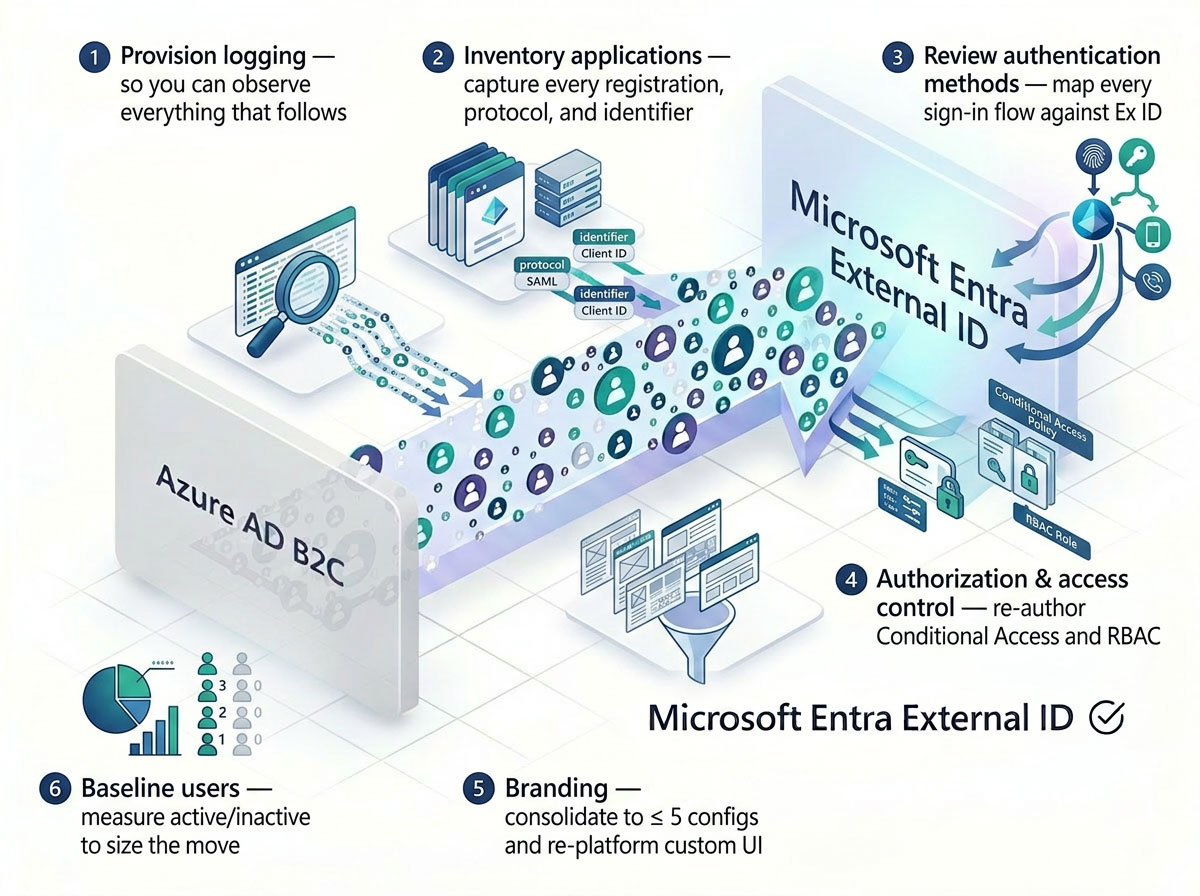
- Provision logging — so you can observe everything that follows
- Inventory applications — capture every registration, protocol, and identifier
- Review authentication methods — map every sign-in flow against External ID
- Authorization & access control — re-author Conditional Access and RBAC
- Branding — consolidate to ≤ 5 configs and re-platform custom UI
- Baseline users — measure active/inactive to size the move
→ then choose a migration approach and move users.
Step 1: Provision logging (you can’t migrate what you can’t see)
You can’t reason about a migration you can’t observe. Turn on diagnostic settings so audit and sign-in logs flow to a Log Analytics workspace on both the source and destination tenants.
B2C quirk: an Azure AD B2C tenant can’t have an Azure subscription of its own, so you can’t point its diagnostic settings directly at a workspace. Use Azure Lighthouse to delegate a resource group (containing the Log Analytics workspace) from a regular Microsoft Entra tenant to the B2C tenant, then configure diagnostic settings there. Only
AuditLogsandSignInLogscategories are supported for B2C. Allow up to ~15 minutes for events to appear. (Monitor Azure AD B2C with Azure Monitor)
✅ Verify before moving on:
- Diagnostic settings enabled on the B2C tenant (via Azure Lighthouse delegation)
-
AuditLogsandSignInLogsflowing to Log Analytics - Confirmed events actually appear in the workspace (allow ~15 min)
Step 2: Inventory your applications
Applications move by manifest, not by magic. The app manifest is the Microsoft Graph application object, so you can export each one as JSON, review it, and recreate it in the new tenant. Before that, you need a complete picture of how each app authenticates and how it looks.
Three things typically catch people off guard here:
- Protocols — catalogue the protocol each app uses (OpenID Connect / OAuth 2.0, and SAML where supported). Confirm every app’s protocol is supported in External ID before you plan its cutover.
- New identifiers & domain — because registrations are recreated in the target tenant, every app gets a new
client_idand new client secret/certificate (credentials are never copied). The Identity Provider domain changes too — the OIDC authority moves from*.b2clogin.comto*.ciamlogin.com. External ID also supports a custom URL domain (e.g.login.contoso.com), so you can decide to brand the authority during the move (and it’s a prerequisite for passkeys). Every client must be updated with the new client ID, credential, authority/metadata endpoint, and redirect URIs.
Rather than hand-rolling Graph calls, use the open-source EntraExporter module. It exports your tenant configuration into a clean, one-object-per-file JSON tree that’s ideal for review, diffing, and source control. Export Applications and Conditional Access policies together in a single pass — you’ll need both for the next checkpoint anyway:
Install-Module EntraExporter -Scope CurrentUser
Connect-MgGraph -TenantId "<source-tenant-id>" `
    -Scopes "Directory.Read.All","Application.Read.All","Policy.Read.All"

# Export only what we need for the assessment
Export-Entra -Path ".\b2c-export" -Type Applications, ConditionalAccess
This writes Applications\*.json (one file per registration) and ConditionalAccess\*.json (one file per policy) under .\b2c-export.
Tip: treat the exported JSON tree as your source of truth — commit it, diff it after import, and keep it for rollback. When you later recreate applications, strip source-tenant values first (
appId/objectId, B2C redirect URIs*.b2clogin.com→*.ciamlogin.com, secrets/certificates,identifierUris) and reconcile API permissions and admin consent in the target.
✅ Verify before moving on:
- Every app registration exported to JSON (manifest captured)
- Protocol catalogued per app (OIDC / OAuth 2.0 / SAML) and confirmed supported
- API permissions, admin consent listed for re-creation
- New
client_idexpected per app — registrations are recreated in the target, so the application (client) ID changes; plan to update every app’s config - New client secret / certificate issued in the target tenant — credentials are never copied; recreate and re-distribute them
- New Identity Provider domain (authority) captured — the OIDC issuer/authority host changes from B2C (
*.b2clogin.com) to External ID (*.ciamlogin.com); update authority, metadata, and IdP URIs in every client application - Custom domain decision recorded — External ID also supports a custom URL domain (e.g.
login.contoso.com); decide whether to brand the authority now (it’s also a prerequisite for passkeys)
Step 3: Review authentication methods & scenarios
Now inventory everything that governs sign-in, and review it against the feature comparison table above. For each method and scenario in use today, confirm parity in External ID — or record the gap and the plan to close it.
- B2C user flows and custom policies (IEF) — list every user flow and custom policy; each becomes a user flow or a custom authentication extension in External ID (one-to-one parity isn’t guaranteed).
- Conditional Access — you already captured these as
ConditionalAccess\*.jsonwith EntraExporter in Step 2; review each policy and re-author an equivalent in the destination tenant.
A quick KQL pass over the sign-in logs shows which flows and apps are actually exercised, so you can prioritize real scenarios over forgotten ones:
 let authOps = dynamic([
      "Verify phone number",
      "Change password (self-service)",
      "User registered security info",
      "Validate Password",
      "Generate one time password"
  ]);
  AuditLogs
  | where TimeGenerated > ago(30d)
  | where OperationName in (authOps)
  | extend Method = case(
      OperationName == "Verify phone number",            "Phone",
      OperationName == "Generate one time password",     "OTP",
      OperationName == "User registered security info",  "Security info registration",
      OperationName in ("Change password (self-service)", "Validate Password"), "Password",
      "Other")
   | summarize Count = count() by bin(TimeGenerated, 1d), Method
  | evaluate pivot(Method, sum(Count))
  | render timechart
✅ Verify before moving on (review each row against the comparison table):
- Email OTP usage mapped (now usable as first and second authentication factor)
- SMS usage mapped (as a second factor only; country-code opt-in is also supported)
- Passkey / FIDO2 plan defined (fresh registration; custom domain; requires MFA review)
- Custom-policy / IEF logic identified for rebuild; Magic Link and Verified ID are not currently supported
Step 4 - Authorization & access control review
In the External ID tenant you will need to recreate the authorization and access control. You can migrate from custom solutions to RBAC, or provide token enrichment via custom authentication extensions. Review the existing policies and map them to the new tenant.
PS> RBAC can be migrated via Graph API, but you will need to review the existing policies and map them to the new tenant.
Step 5: Branding
✅ Verify before moving on (review each row against the comparison table):
- Branding limits — External ID company branding supports a maximum of 5 branding configurations (e.g. per language/locale set). If B2C carries more, you must consolidate down to 5 during assessment, not discover it at cutover.
- No custom JavaScript — External ID branding allows custom HTML/CSS templating but does not allow custom JavaScript. Any B2C sign-in page that relies on JavaScript-driven UX must be re-designed — that logic moves into supported features (user flows, native auth, or custom authentication extensions), not the page.
- CSS — External ID branding supports CSS, but the selectors and DOM structure are different from B2C. Any B2C CSS must be re-written for External ID.
- User flows and customizations - via B2C Custom Policies (IEF) customization is possible on the highest level, but in External ID you have to use user flows and custom authentication extensions, which have different capabilities and limitations. Review your existing user flows and custom policies to identify any customizations that may not be directly supported in External ID, and plan how to implement them using the available features.
Customization checklist:
- HRD - custom home realm discovery (HRD) logic like automatic redirect to a specific IdP based on email (domain) is not supported in External ID.
- JavaScript Auto-Clicks - any B2C page that relies on JavaScript to auto-click buttons or auto-submit forms must be re-designed; External ID does not support custom JavaScript.
- Custom error pages - External ID does not support custom error pages. You will need to use the default error pages provided by External ID or implement custom error handling in your application.
Step 6: Baseline active & inactive users and tenant assesment ‘helpers’
Finally, establish a baseline of who is actually signing in - this drives your migration sizing, your JIT-vs-forced-reset decision, and your post-cutover success check (the active-user count should hold steady across the move).
Use KQL queries against the Log Analytics workspace to identify active and inactive users; also review last tenant operations and check MFA authentications.
Monthly active users over the last 30 days
// Monthly active users over the last 30 days
 AuditLogs
    | extend ObjectId_ = tostring(TargetResources[0].id)
    | where isnotempty(ObjectId_)
    | summarize LastActivity = max(TimeGenerated) by ObjectId_
    | where LastActivity < ago(30d)
    | project ObjectId = ObjectId_, LastActivity
B2C — Consumer users created in the last 30 days
// B2C — Consumer users created in the last 30 days
  AuditLogs
  | where TimeGenerated > ago(30d)
  | where OperationName == "Add user"
  | extend
      NewUserId    = tostring(TargetResources[0].id),
      NewUserUPN   = tostring(TargetResources[0].userPrincipalName),
      CreatedBy    = tostring(InitiatedBy.user.userPrincipalName)
  | where isnotempty(NewUserId)

  | summarize Count = count() by bin(TimeGenerated, 1d), OperationName
| render timechart
B2C — Which applications are driving the most token issuances (last 30 days)
// B2C — Which applications are driving the most token issuances (last 30 days)
AuditLogs
  | where TimeGenerated > ago(30d)
  | where OperationName contains "issue"
  | extend
      AppId   = tostring(TargetResources[0].id),
      AppName = extractjson("$.[0].value", tostring(AdditionalDetails)),
      Policy  = extractjson("$.[1].value", tostring(AdditionalDetails))
  | summarize
      TokensIssued = count(),
      LastSeen     = max(TimeGenerated),
      UniquePoliciesUsed = dcount(Policy)
    by AppId, AppName
  | order by TokensIssued desc
B2C — Conditional Access policies applied (last 30 days)
Bonus - operations perspective
✅ Verify before moving on:
- MAU / DAU baseline captured and saved for post-cutover comparison
- Inactive accounts identified (won’t JIT-migrate — decide: force-reset, bulk-migrate, or retire)
With logging on, applications inventoried (protocols, branding ≤ 5, no JavaScript), authentication methods and scenarios reviewed against the table, and your active/inactive users baselined, the assessment is complete — and you’re ready to choose an approach and move users.
User & account migration options
Moving existing accounts is the core challenge. Here are three options you can ship today, each with different trade-offs.
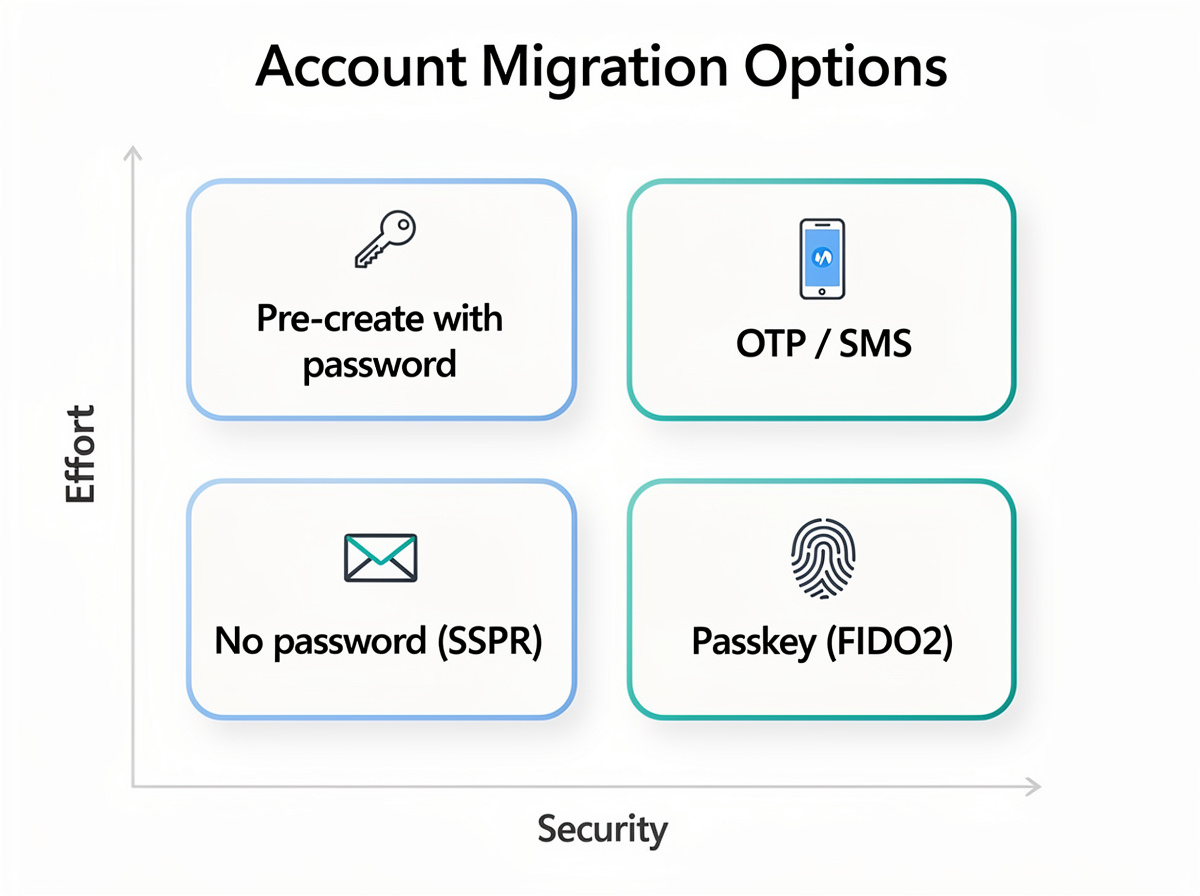
Which one fits depends on decisions you already made during the assessment — especially your Step 6 inactive-user call (force-reset, bulk-migrate, or retire) and the MAU/DAU baseline you captured there. Options A–C bulk pre-provision every account you chose to keep — active and inactive alike — so they’re the answer for migrating all the users you decided to carry over. The self-service patterns further down provision active users only, which is why they can’t stand alone for inactive accounts.
Option A — Pre-create accounts WITH a password (via Microsoft Graph)
Provision accounts in External ID with an initial password set through the Microsoft Graph API, force a change at next sign-in (forceChangePasswordNextSignIn = true), and email the temporary password to the user.
Sample Graph API Request
- Effort: Medium (bulk Graph provisioning)
- User friction: Low (familiar credential + forced change)
- Security: Medium (temporary secret travels by email — transmit securely)
- Scope: All accounts (bulk pre-provisioned — active and inactive)
- Use when: Large migrations where users should sign in immediately with a familiar experience.
- Status: ✅ Supported today
If you can preserve original plaintext passwords, set
forceChangePasswordNextSignIn = falseinstead, and disable password expiration for local accounts.
Option B — Create accounts WITHOUT a password and rely on self-service password reset (SSPR)
Account recovery via “Forgot password?” can be an option when you don’t want to provision passwords at all. Create accounts with no usable password; users activate them via self-service password reset (SSPR) or by registering an authentication method. Entra External ID does not currently support extensive User Flow customization, so you can’t force users to register an authentication method at first sign-in. Instead, the user flow configuration requires users to provide their email first and, on the next screen, select “Forgot password?” to use one of the available methods to reset their password and activate the account. This option is not ideal, but it allows you to migrate without password provisioning while still letting users activate their accounts in a self-service way.
- Effort: Low (no password provisioning)
- User friction: High (extra instructions; must use SSPR to activate)
- Security: High (no pre-shared secrets)
- Scope: All accounts (pre-provisioned; active users self-activate via SSPR, inactive stay dormant until they return)
- Use when: Smaller migrations.
- Status: ✅ Supported today
Option C — Migrate to email OTP (email one-time passcode)
Drop passwords entirely for affected users — only the new system information is needed. The Email one-time passcode (OTP) method sends a code valid for 10 minutes.
- Effort: High for password flows (the new authentication flow must be accepted by applications); Low for existing OTP authentication flows in Azure AD B2C.
- User friction: Low
- Security: High (no stored passwords; time-limited codes)
- Scope: All accounts (bulk pre-provisioned, passwordless)
- Use when: Aiming for passwordless convenience.
- Status: ✅ Supported today
Looking ahead: self-service migration patterns (not yet supported)
The four options above are what you can ship today. Two more patterns are worth keeping on your radar — both would enable self-service, just-in-time (JIT) migration with very little friction, but neither is currently supported by Entra External ID. Treat these as design ideas to advocate for, not steps you can implement right now.
Magic Link migration (JIT via a dedicated, JWT-backed link)

Instead of pre-provisioning credentials, you email each B2C user a dedicated magic link that carries a signed JWT describing who they are (subject, email, source-tenant claims, expiry). When the user clicks it, a backend validates the token’s signature and expiry, then provisions the External ID account just-in-time and drops the user straight into the new tenant — no password to set, no temporary secret in transit. The link itself is the proof of email control, and the JWT is the migration authorization.
This is effectively a B2C-initiated, link-driven JIT flow, and by design it only migrates active accounts — the account is created the moment a real user clicks the link and shows intent. Users who never engage are simply never provisioned, so this pattern is not a strategy for inactive accounts: those still need a forced reset, a final bulk pass, or retirement (the decision you made back in the assessment). The upside is that your migrated population maps one-to-one to genuinely active users, with zero dead accounts carried over.
Solution design
Today you’d have to build this as a custom backend (mint and verify the JWT yourself, then call Microsoft Graph to create the user) because External ID has no built-in magic-link authentication method. Keep an eye on this — magic link support has been a long-standing community ask.
Note: Magic Link is good option for migration without password and/or OTP - is perfect from user experience perspective;
Hint! Magic Link can be a part of user profile page - a dedicated portal (like my demo: https://profile.factorlabs.pl);
- Effort: High (custom backend to mint/verify JWTs and provision via Graph)
- User friction: Very low (one click from an email)
- Security: Medium–High (short-lived, signed, single-use links; secure the signing key)
- Scope: Active accounts only — inactive users are never provisioned (handle them separately)
- Status: ❌ Not supported natively — custom build only.
What next?
My plan to Part 2 of this series is to cover federation scenarios (Workforce Entra ID and others).